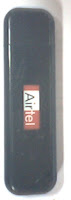
Since last one and half month I am using Artiel USB Data Card Micromax. At the time of purchasing of the data card I did a lot of
homework regarding which data card service provider is better. Finally keeping pro and cons I decided to take Airtel for the fact that though the services provided by Airtel are costly as compared to other service providers they usually have a logical explanation to all the charges (i.e. you have signed the agreement at the starting, that’s why reading to the agreement is so crucial, though you can not do anything if you do not like their terms and conditions as it is very likely that all other providers have same terms and conditions), but they do explain the reason for the charges, unlike others who says that they do not have information regarding the usage charges but you have to pay for them (i.e. Spice, I have used that long back).
Though I am using Artiel USB Data Card Micromax, which I can’t change now because of the fact that I have already paid for the Artiel USB Data Card Micromax which is 2999.00 which is not refundable under any circumstances and I do not want to go through all the process of taking services from another service provider which is going to be as troublesome as it was with Airtel and it is difficult for someone who is working, I am giving sufficient reasons, why you should not be choosing it in case you are a new customer.
I will start from starting. At the time of purchasing I have been told orally that there are three plans for Data card services Plan 350, Plan 500 and Plan 999. If you are curious about plans do call to customer care or ask me I will write that also. But I have failed to get these plans in hard form like pamphlet; neither, I could find them on Airtel’s website (that is www.airtel.in). So these plans just go orally, you can ask Airtel why? I am still not being able to. To change the plan you need to write to bb.support@airtel.in which may change the plan within 48 hours but will not inform you in this regard till you call them and ask them for the same. You can not request for the change of plans from the Airtel’s website as these plans are not mentioned on Aitel’s website, not you get an option for the same. More importantly it took me 23 attempts to register to Airtel’s website, after complaining three times to Airtel at support@airtel.in along with screen shots of the problem I was facing (which was the massage “we are unable to process your request due to some technical error”). I have not got reply after sending the screen shots from Airtel, except the auto generated messages for the receipt of e-mails. After a week or so I have tried and I finally got it.
I got a huge bill from Airtel (that’s actually more then 7000 Rs for one month only for Data card usage), but that’s not the part of the complaint I have from the Airtel which I may be able to see in my bills when I get it, which is going to be after one week. The customer care won’t tell you about how can I get the bill detail before paying the amount, for that I have to wait till I get the bill delivered to my address, but they insist you paying the amount due, they also won’t tell you that “you pay the bill which you will get later else the services are disconnected without any information in this regard”. They will inform you only that your bills have exceeded the limit (which is decided by Airtel) and you will get this information only after your bill is prepared, so you will neither be able to ask them so stop services in case you think the bill is going higher then what you can pay, nor you can decrease usage as you wont know till the end of month that you are using more then you can pay.
The services to my Artiel USB Data Card were stopped without any prior information in this regard, when I have asked 121 that is suppose to be Airtel Customer Helpline, they informed that my services were barred for the non payment of the billed amount. I have been assured that the services will be restored within one hour once I pay the amount. But again, after waiting for one day when I could not get my services restarted, I have called to 121 again, they said that still your services are barred due to non payment of the amount, after requesting him to check for the payment issue, he said that, payment has been made but not updated from their side, and it will be done within an hour or so. I waited for one hour and called 121 again, then the Customer care executive said that none of your bills are due and he is unbarring services and I should wait another hour or so to get it done. Again after one hour when I have called 121 they have informed me that my services are unbarred and I have got SMS regarding that in my cell (it is crucial to know that you won’t be informed about either the barring or unbarring of your services by SMS until you specifically request them for the same). Now I can used the services again. But again the Data card was neither getting network not it was working. I have called 7070 which is Airtel Data Card Customer Care. The person here said that according to their database the services are still barred and asked me to call 121 again. I have called 121 again and person their said that services are not barred and active, I have asked him how do I know, will I get some SMS or anything like that, he says that Airtel’s policies do not let him do that (I don’t understand why? when they can bother you will all the useless offers), he said that your services have been activated and he can not do anything if 7070 is not able to get the things updated.
I have called 7070 again which still said the same that my services are barred. I hope you can see that I have called 121 for more then 6-7 times, there’s something happened which I did not expected. Service of my number to 121 was barred. I called 7070 again to tell them the same but they said they can not help in this regard and suggested what I can do is to call 121, there’s no other way. Now I can’t call 121, which I later I found was due to calling many times to Airtel, they put your number to ignore list and when you call them it says “ALL OF OUR CUSTOMER CARE EXECUTIVE ARE BUSY ATTENDING OTHER CUSTOMERS, KINDLY CALL LATER” and the phone gets disconnected after you hear you for whole two minutes of Airtel offers and various options you choose to get to Customer care which is quite frustrating. I went to Airtel outlet near my place and there also staff was not very helping in this regard. But they told me to get on to direct hotline 52222 from their landline for this purpose (this number doesn’t work from cell so do not try). Finally, I could get to Airtel Customer care executive, again like pervious customer care executives he said that he has updated the database and I can recheck after one hour, this time he also mentioned that services were barred including 121 for excess calling to 121, which I think is a shameful act on Airtel’s part.
After one hours waiting when I talked to 7070 they said that services are restored to my Airtel number. With this hope I have tried connecting my Artiel USB Data Card Micromax to my laptop, which luckily I brought, but guess what? I was still not being able to get connectivity from my device, like from the time of barring of services still it was saying “The device has been disconnected or unavailable”. People at Airtel’s outlet also tried what all they could, experimenting with the device without any help. I came back to my room loosing all the hopes. All these times I was able to call to 7070 and I was a hope that things might work and fear that 7070 may put call my number on their ignore list. When I have called 7070 again for another 3-4 times they have told me a new method each time to get the things working like:
• Check your SIM if it is working, and after I explain them that I am calling from the same SIM, and then also they insist to get it checked on another cell.
• Uninstalling and installing of the software again which I have already done many times
• Restarting of the system again
• Checking GPRS setting on cell rather then on Airtel’s USB data card by getting settings from 121, which I am not able to call
You can imagine all this time to check your USB Data Card Micromax I have to remove the SIM from my cell and insert it to USB Data Card and to call to Customer care I have to remove SIM from USB Data Card Micromax to my cell, which could be really frustrating when you have to do it more then 25-30 times, with each time listening to all the instructions on all the customer care numbers, waiting and punching your request numbers each time and more importantly explaining each and everything from the starting to a new customer care executive. It was also said that they can only help if there’s problem with the data card and have said that they wont be helping if there’s a problem with the my laptop’s setting or any problem arising due to it, meaning thereby that they wont help even if their software is not perfectly compatible with Vista or in any situations like that.
When I called them again they have given the number of local agent of Micromax for further help, who assured me a visit on coming Monday as they can not come earlier. Let’s see what Monday has for me and I have work to do on Monday.
Unfortunately I can’t suggest you, what to go for if not Airtel USB Datacard. At least I had this in mind that Airtel will close doors totally in case there’s some kind of problem, but unfortunately it did.

 DISPLAY
 CAMERA